I kept seeing CapCut recommended as the free editor that everyone uses, so I wanted to pin down where free actually ends and the paid plans begin. The marketing answer and the real answer are rarely the same, so I installed it and ran a full edit myself before forming a view.
What follows is every plan CapCut sells right now, what each one costs, the way its AI credit system really works, and the point where the free account stopped being enough during my own test.
CapCut sells itself as an editor for everyone, with a free online option sitting right next to the paid download.
Getting it onto my laptop
The install was quick, though my first attempt threw a plain "Not Found" page before the editor would load. A second attempt cleared it and the app opened normally, so it read as a loading hiccup rather than a broken download.

The "Not Found" screen I hit on the first try, which went away on a retry.
Once it loaded, CapCut pushed a sign-in prompt at me, offering a QR code, Facebook or Google. You can edit without an account, but signing in is what unlocks cloud projects and anything that draws on the credit balance.
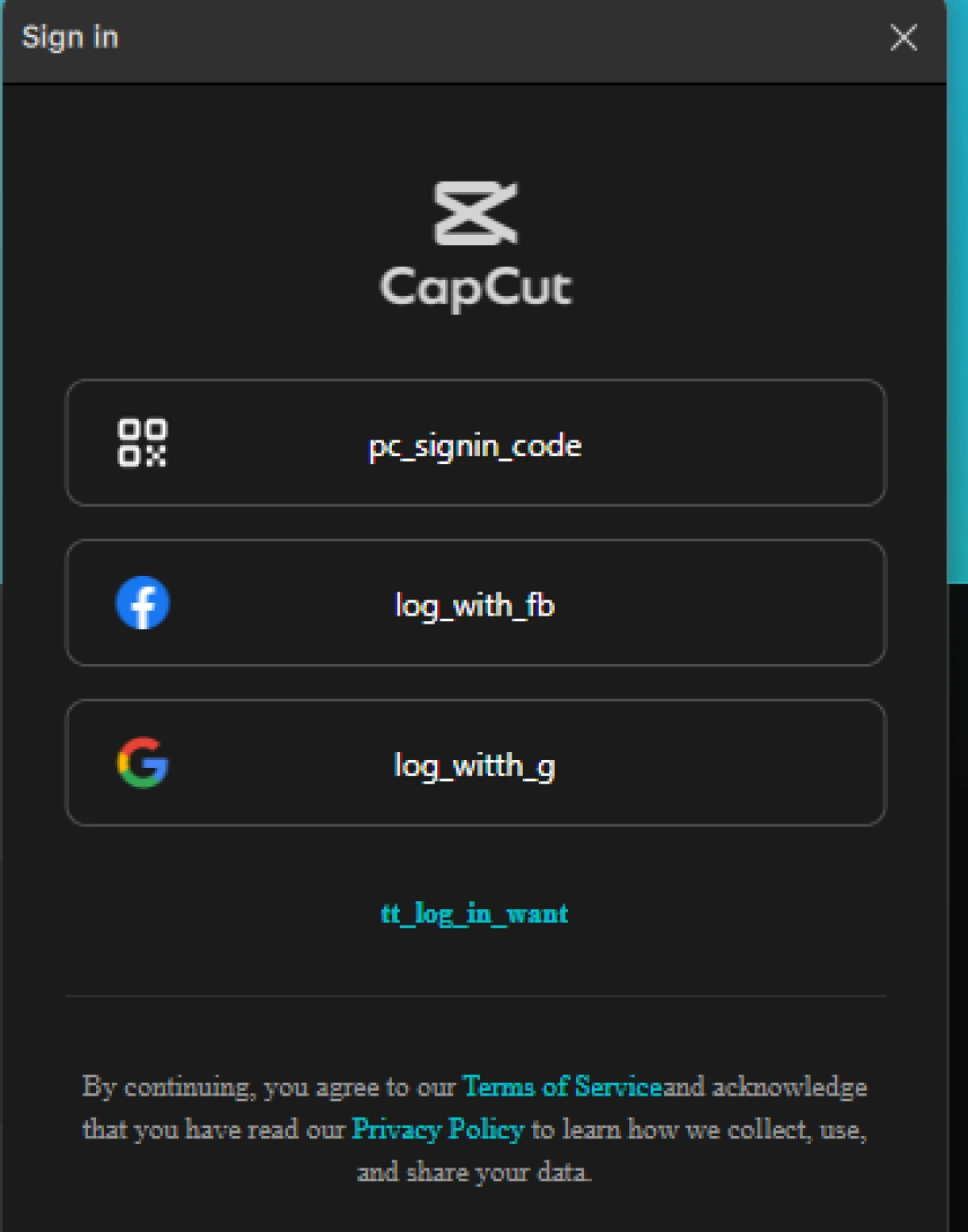
The sign-in options. Editing works without this, but credits and cloud projects need an account.
My hands-on test of the free plan
I did not just click around the menus. I ran two real clips through a full edit, from import to a finished export, and stayed on the free account the whole way so I could see exactly where it would try to stop me.
The first clip I brought in was a short vertical video, around ten seconds long. It landed in the media panel and dropped onto the timeline with no fuss and no upgrade prompt.
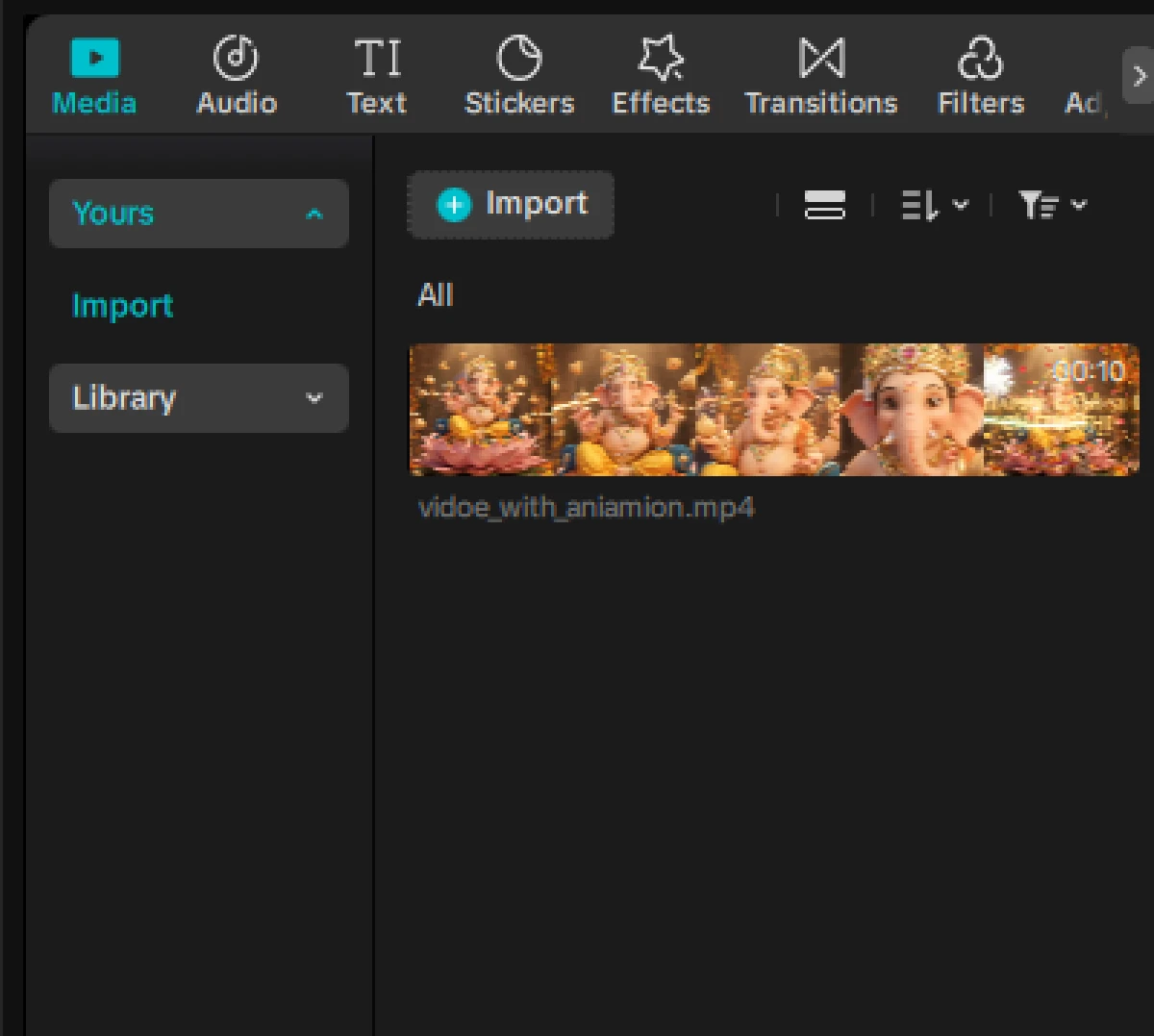
My first clip sitting in the media panel, ready for the timeline.
A second clip, this one straight from WhatsApp, imported the same way. Mixing sources did not trip any limit either.
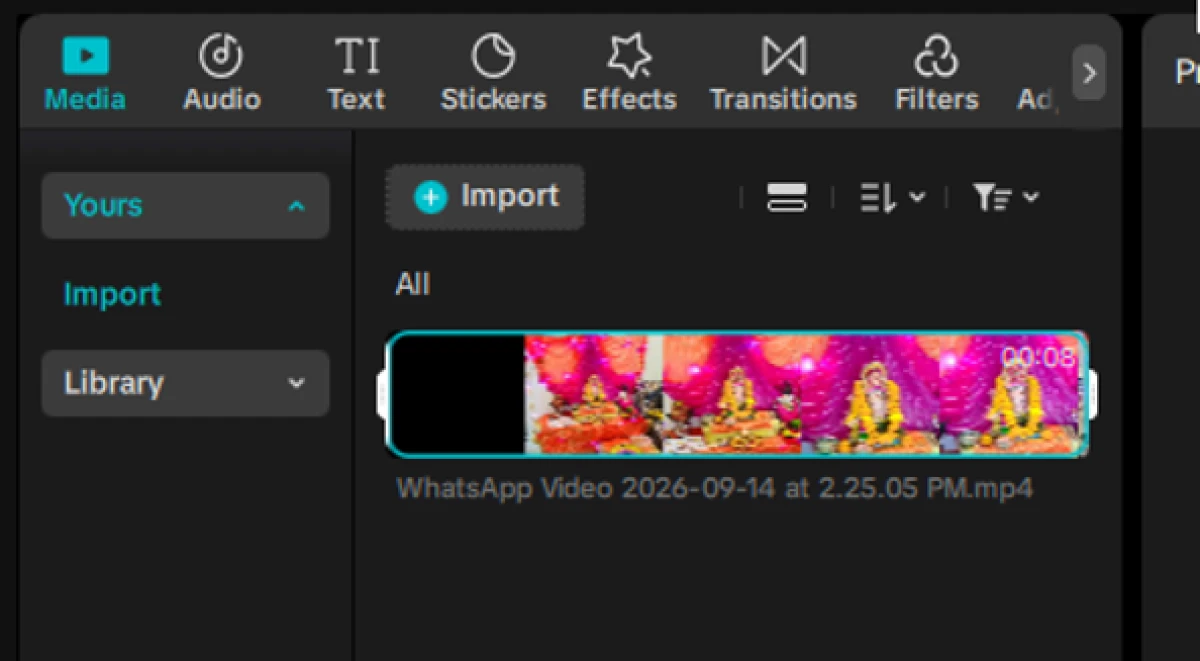
A second clip imported from a WhatsApp file, no upgrade prompt.
Because I was working with vertical footage, the first thing I checked was the canvas ratio. The full set was open on free, from widescreen 16:9 down to vertical 9:16, with square and the cinematic ratios in between, and switching between them was instant.
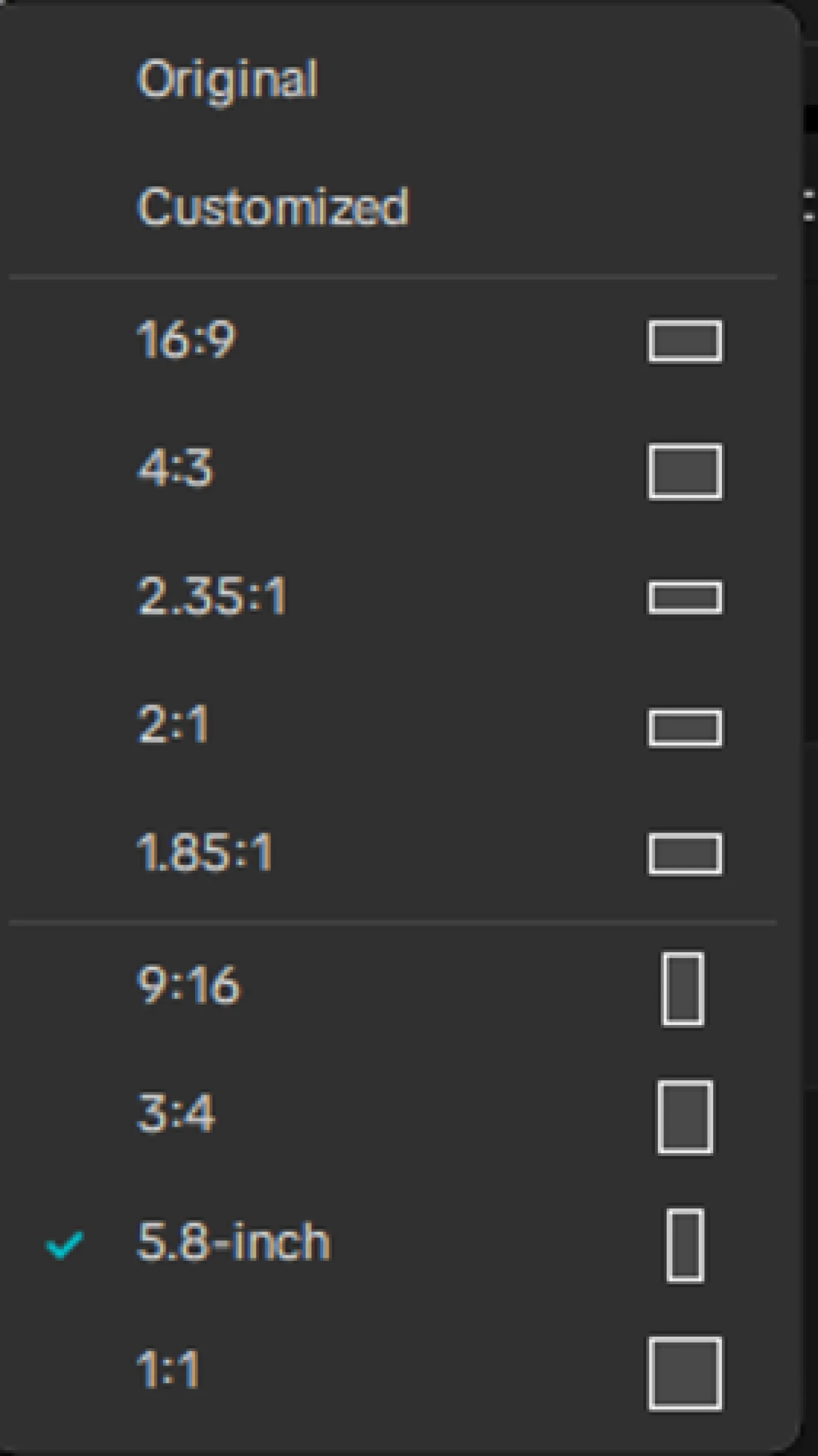
Aspect ratio options, from 16:9 down to 9:16 and square, all on free.
Speed is where a lot of editors start charging, so I expected a wall. There was none. I had the normal slider for a flat speed change and the curve option for ramping, and alongside them sat a change-pitch toggle and a slow-motion smoothing option.
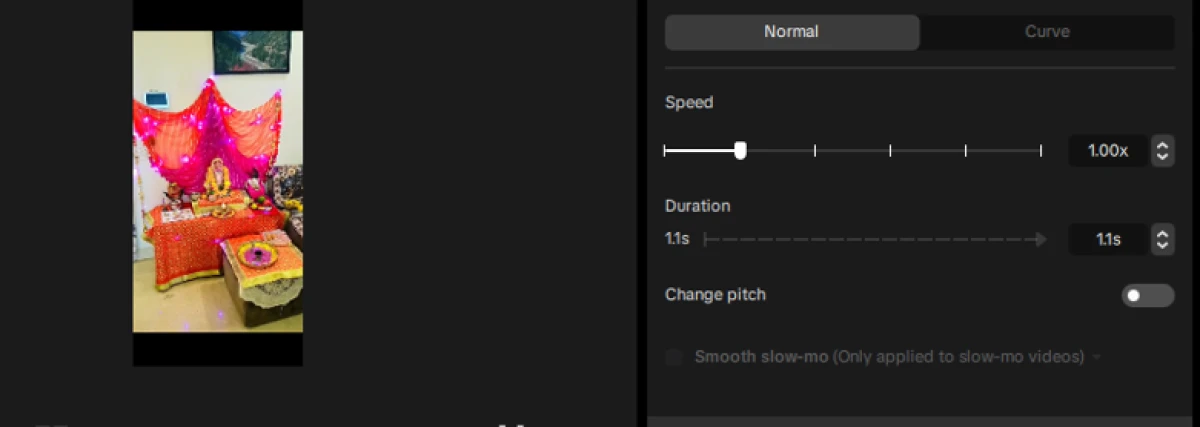
The speed panel with both the normal slider and the curve option available.
The audio side surprised me more. The voice panel was not a single locked sample. It carried voice filters and a separate set of voice characters, and it even had a speech-to-song option that I could audition without paying.
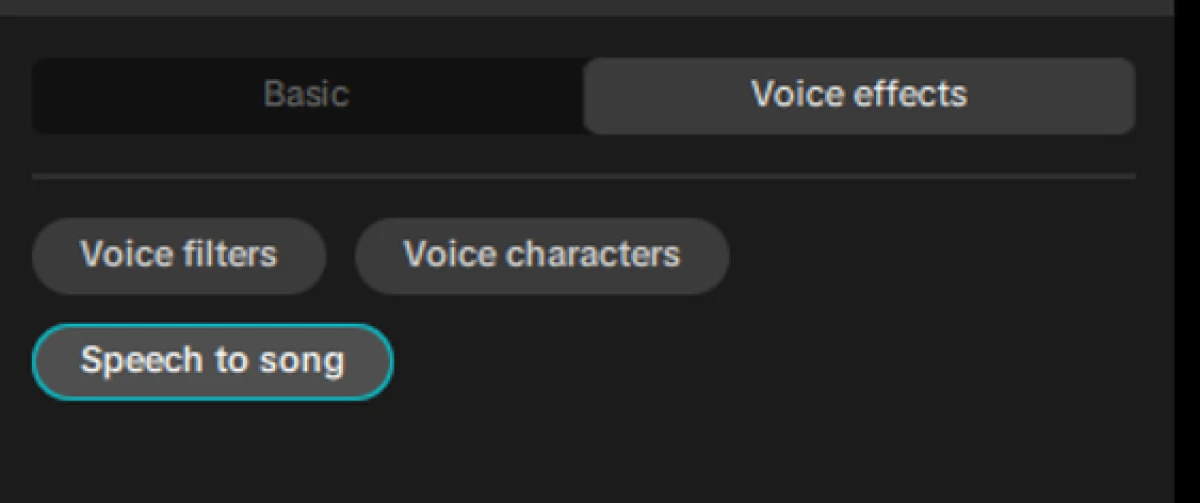
Voice effects on the free tier, including a speech-to-song option.
Masking is the kind of feature that usually signals a paid editor, so I did not expect it to open. It did. The mask panel sat next to cutout and enhance, and I could add a mask to a clip directly.
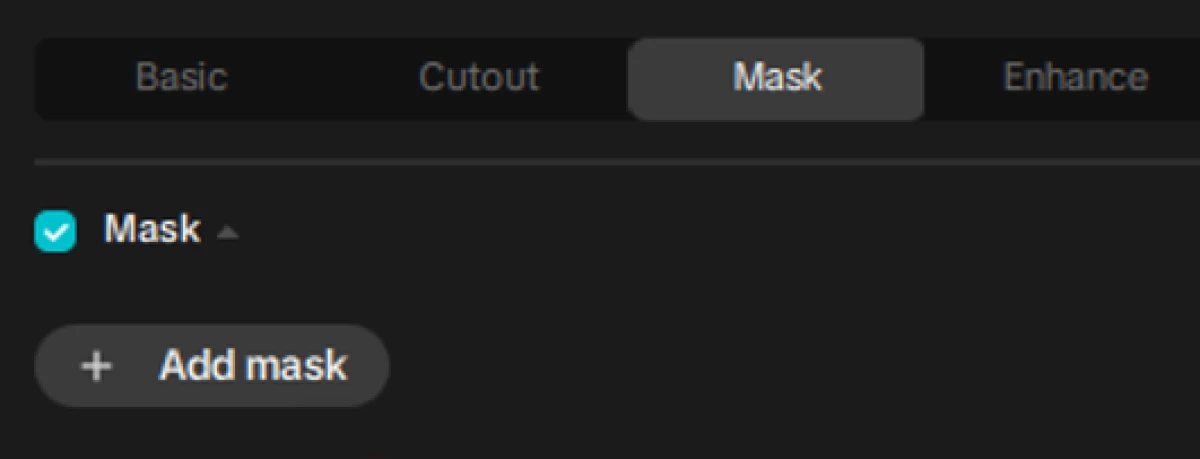
The mask tool, open and usable without Pro.
The export is the moment of truth for any free editor. Mine rendered at 1080p in H.264 as an MP4 at 30fps, a six-second clip at a roughly seven-megabyte estimate, and it saved straight to my machine with no watermark on the standard render. The dialog also carried an optional copyright check toggle, which I left off.
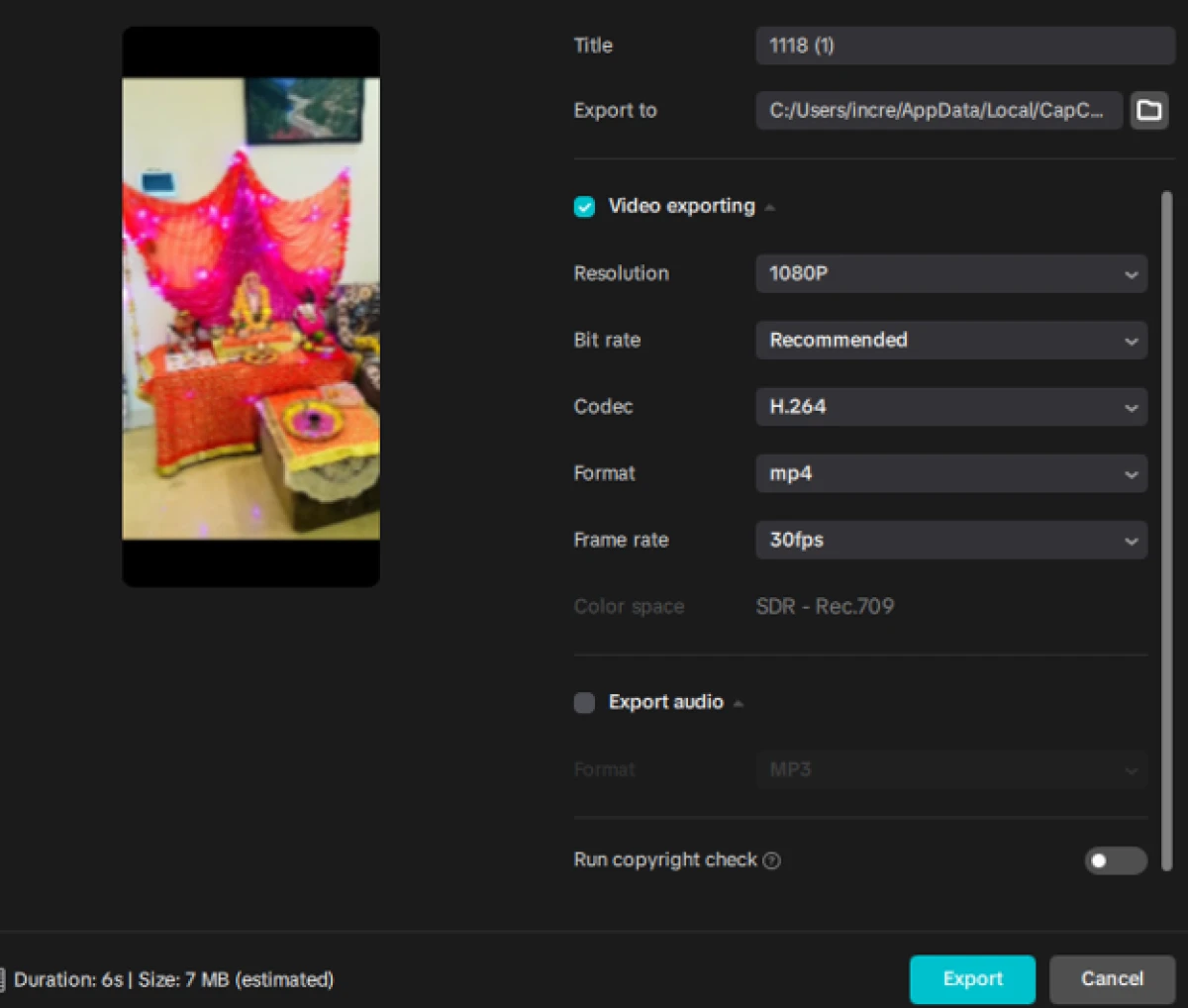
The export dialog at 1080p, H.264, MP4, with a clean standard render.
The short version of my test is that the manual editing I would use day to day was free. I never hit a wall on cutting, speed control, audio work or the final export. The walls, when they came, sat around premium content and the AI generation layer, which is a separate thing from editing.
What the plans cost?
CapCut reshuffled its lineup in 2026. A spring restructure raised Pro from 550 to 1,200 monthly credits and from 100 GB to 1 TB of storage, added the high-end Ultra tier, and repriced Teams from a flat per-user rate to a lower per-seat one. Here is the current structure in US dollars.
| Plan | Monthly | Annual | Credits / mo | Storage | Best for |
|---|---|---|---|---|---|
| Free | $0 | — | None / very limited | Limited | Casual editing |
| Standard | ~$9.99 | None | Not published | Not published | Light upgrade, app store only |
| Pro | $19.99 | $179.99 | 1,200 | 1 TB | Regular creators |
| Ultra | $79 | $900 | 8,645 | 1 TB | Heavy AI creators |
| Teams | $12.49 / seat | Varies | 1,200 / seat | 1 TB | Agencies, brand teams |
| Commerce Pro | ~$25.99 | ~$20.84 / mo | ~1,800 | Varies | E-commerce sellers |
Prices are US web figures and move by country and platform. Ultra and Commerce Pro are not always shown on the main pricing page, and Standard now appears only in the mobile app store.
CapCut Pro, the plan most people mean
Pro is the upgrade that the free prompts are steering you toward, and at $19.99 a month it is the one that matters for most creators. The annual option lands at $179.99, which works out to about $15 a month and saves roughly a quarter against paying monthly across a full year.
For the money you get the full editing toolkit without watermarks, 4K export, the complete premium template and effects library, 1 TB of cloud storage, and a monthly pool of 1,200 AI credits. That credit pool is the part worth reading closely, because it is where Pro stops being unlimited.
CapCut Ultra, built for heavy AI use
Ultra sits above Pro at $79 a month, or $900 a year, and CapCut badges it for AI creators. The editing feature set is the same as Pro. What you are paying the extra for is credits, and a lot of them: 8,645 a month against Pro’s 1,200, plus a handful of exclusive AI features.
That only makes sense if you regularly burn through Pro’s allowance. If you generate AI video or images every day, the per-credit cost on Ultra is far better. If you do not, you are paying four times the Pro price for credits you will never touch.
CapCut Teams, for groups and agencies
Teams is priced per seat rather than per account, starting at $12.49 a seat each month with a two-seat minimum. Each seat carries its own 1,200 monthly credits and 1 TB of storage, and the plan adds a shared brand kit, collaborative editing and admin controls on top of the Pro feature set.
The per-seat figure shifts with headcount, and some seat counts print higher or lower rates, so the headline number is a starting point rather than a fixed price. CapCut also notes savings of up to 80 percent on annual Teams billing, which again depends on how many seats you take.
The two tiers most guides skip
Standard is the cheaper paid tier at roughly $9.99 a month. CapCut quietly pulled it from the main web pricing page and now sells it mainly through the mobile app store, and it does not publish the credit or storage allowances, so treat it as a light step up from free rather than a serious creator plan.
Commerce Pro is a separate product aimed at e-commerce sellers and TikTok Shop creators. It runs around $25.99 a month, or closer to $20.84 a month billed annually, and bundles roughly 1,800 monthly credits with tools like product-URL-to-video and shoppable links. Unless you are producing product ads, it is not an upgrade you would reach for.
Free versus paid, side by side
Stripping out the specialist tiers, the core choice is free against Pro and Ultra. Here is how they separate.
| Feature | Free | Pro | Ultra |
|---|---|---|---|
| Price | $0 | $19.99/mo | $79/mo |
| Monthly AI credits | None / very limited | 1,200 | 8,645 |
| Cloud storage | Limited | 1 TB | 1 TB |
| Premium templates, effects, fonts | Locked | Included | Included |
| Advanced AI tools | Mostly locked | Included | Included, plus exclusive AI |
| Watermark on AI / template exports | Yes | No | No |
| Standard editor export | Clean, no watermark | Clean | Clean |
How CapCut’s AI credits actually work
The credit system is the part that trips people up, because a paid plan and a full credit balance are not the same thing. CapCut runs three separate types of credit, and it spends them in a fixed order.
| Credit type | How you get it | Validity | Spent |
|---|---|---|---|
| Subscription | Included with your plan each billing cycle | Until the end of that cycle | First |
| Activity / promo | Events, referrals, limited offers | Short, often 7 to 30 days | Second |
| Purchased | Bought with real money | 2 years from purchase | Last |
A few practical points follow from that. Your monthly subscription credits do not roll over, so anything unused at the end of the cycle is gone. Purchased credits are the durable ones, valid for two years and still usable even after a subscription lapses. You can only buy top-up packs on the web or desktop app, since the mobile app has no purchase button at all.
CapCut does not publish a fixed price for those top-up packs on its pricing page, which is why no two guides quote the same number. The balance and the available packs show up once you open the Credits page in your account.
How many credits a video generation burns
This is the question I most wanted answered, and the honest version is that there is no single number. The cost moves with the model you pick, the clip length and the resolution, and CapCut publishes no per-second table.
What it does publish is a monthly ceiling. On its AI video page, a Pro account showed up to around 100 seconds of Seedance 2.5 per month at 720p, and an Ultra account showed up to around 235 seconds. In practice a five-second 720p clip on the newer Seedance model draws somewhere near 90 to 100 credits, while the lighter Seedance Mini model can cut that by more than half. Measured against Pro’s 1,200 monthly credits, that is roughly ten to twelve short generations before you are topping up.
The free tier barely registers here. It carries little to no monthly allowance, so AI video generation is effectively a paid feature even though the manual editing around it is not.
The fine print worth knowing before you pay
- App store markup: subscribing through the App Store or Google Play usually costs a dollar or two a month more than buying on the web or desktop.
- Regional pricing: the figure in your own checkout can differ from the US list, since CapCut varies prices by country, device and current promotion.
- The free trial: new accounts can get 7 days of Pro, but the trial can auto-charge when it ends, so cancel before the renewal date if you are only testing.
- No mid-cycle switching: you generally cannot hop between plans partway through a billing period, so pick the tier you actually need up front.
My verdict
For most of what I did, the free plan was enough. I trimmed, retimed, added voice effects, masked a clip and exported a clean 1080p file without paying anything, and that covers the bulk of ordinary short-form editing.
Pro earns its $19.99 only if you want the generative AI and the premium asset library, or you need the watermark gone from template and AI exports. Ultra is a narrow pick for people who generate AI video daily, and Teams makes sense once more than one person shares the work. If you mainly cut and caption footage you already have, I would sit on the free plan and treat the 7-day Pro trial as the way to test whether the AI side is worth the jump.

With experience writing 500+ pieces of content across different formats, I focus on making technology and cybersecurity topics clear, informative, and accessible. At **TechJox**, I cover tech news, cybersecurity trends, digital safety, and practical guides that help readers stay informed and make better decisions. My approach combines research, accuracy, and simple storytelling to turn complex information into useful, engaging, and easy-to-understand content.
Discussion (0)
You need a free TechJox account to join the discussion and report scams you spot.