AI quietly runs a big chunk of my working day. It drafts my emails, untangles my half-formed thoughts, summarises long reports, and writes code I would have spent an hour on. At some point I stopped asking whether it could help and started assuming it could. It almost solves everything.
So when I needed a presentation on the latest trends in digital marketing, I did not even hesitate. A deck felt like one of the easier things I could hand it. I decided to see exactly how far it could take me, pulled my structure and my talking points straight from it, and kept a timer running on every step so I could see where the time really went.
Here is the honest version of what happened. The ideas it gave me were fantastic, better than my own first instincts. The finished slides were where it quietly fell apart. Both things are true, and the gap between them is the whole story of using AI to build a PowerPoint in 2026.
The short answer Yes, AI can now make a real PowerPoint file. It is brilliant at the thinking and the writing, and only average at the design. Treat it as your writer and strategist, then bring a second tool in to finish the slides, and you get a genuinely good deck in a fraction of the usual time. |
One note before we start: for this run I used Claude's built-in presentation builder, which is what you will see in my screenshots. The same workflow, and most of the same limits, apply to ChatGPT and the other major assistants, so I will point out how each handles things as we go.
Can AI actually make a PowerPoint in 2026?
A couple of years ago the answer was basically no. Back in 2023 and 2024, asking a chatbot to make a PowerPoint got you a polite refusal or a text outline you had to copy into the slides yourself. That is the version a lot of people still remember, and it is out of date.
Today these tools genuinely produce a downloadable .pptx file. ChatGPT does it by writing and running code behind the scenes, through its newer Agent Mode, and through custom GPTs that plug into dedicated slide engines. Claude builds the deck inside its own presentation view, which is the one I tested. The way people who do this a lot describe the whole category is simple and accurate: the AI is the architect and the writer, while a specialised design tool is the interior designer.
That framing matters, because it tells you where to trust it and where not to. I trusted it completely with the words and the running order. I learned the hard way not to trust it with the look.
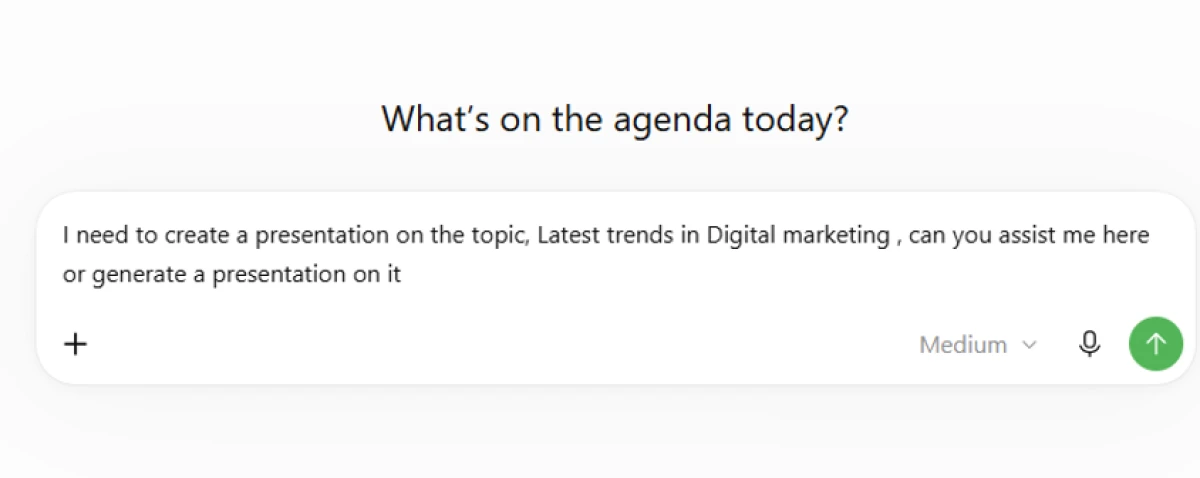
The brief I typed to kick off the deck. The more it reads like a real brief, the better the result.
Where AI genuinely shines: the ideas were fantastic
I want to start here because this is the part that surprised me. I expected a bland outline. What I got back felt like a decent strategist had read my brief.
Instead of a flat list of marketing buzzwords, it reframed the whole deck around a sharper angle: what is changing, why it matters, and how a business should respond. It grouped the trends into a story rather than a pile, decided which ones deserved a full slide and which belonged in a single line, and pulled recent, sourced themes rather than vague claims.
When I asked it to push harder, it did. It tightened the angle, cut the weak points, and proposed a strong closing slide I would not have thought of. This is the stage where AI earns its place. If you only ever used it to brainstorm and outline, it would already be worth the subscription.
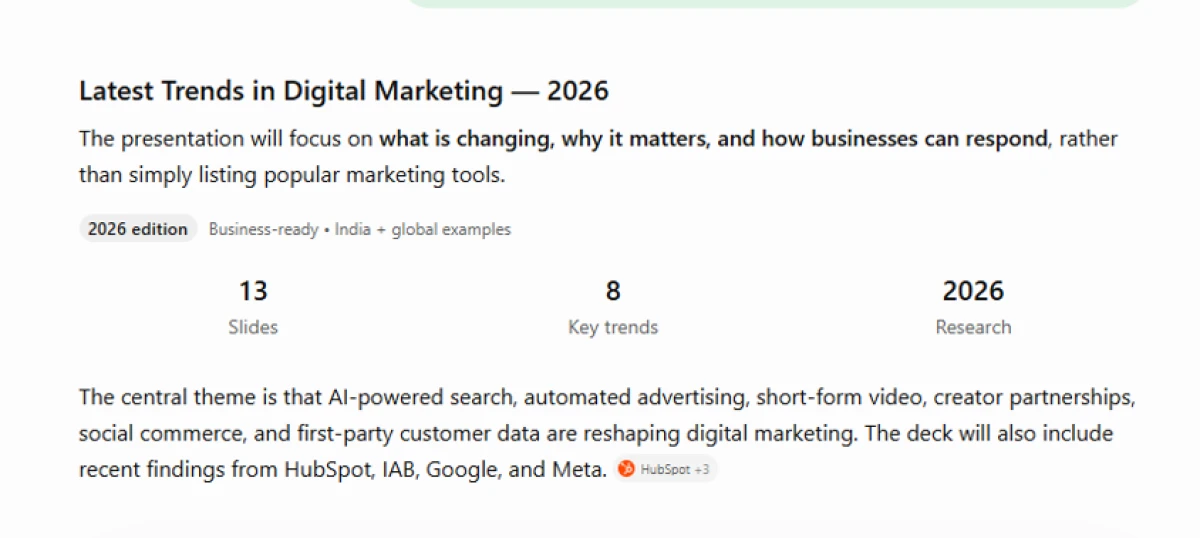
The plan it came back with: a clear angle, 13 slides, 8 trends, and sourced themes. This is the part I would not give up.
How I used AI to make the PowerPoint, step by step
Here is the exact sequence that worked for me, after a few false starts. The order matters more than any single prompt.
Step 1. Write a prompt that behaves like a brief
The difference between a generic deck and a good one is almost entirely in the prompt. "Make a deck about digital marketing" gives you wallpaper. I gave it the audience, the goal, the tone, the number of slides, and one line on what I wanted the audience to feel at the end. The output quality jumped immediately.
Step 2. Lock the outline before any slides exist
I never let it jump straight to finished slides. I settled the running order first, argued with it, trimmed it, and only moved on once the story was right. Fixing a story in plain text takes seconds. Fixing it after the slides are built takes far longer.
Step 3. Generate the actual deck
Once the outline was settled, I had it build the file. In Claude this happened right inside the presentation view. In ChatGPT you would use Agent Mode, or ask it to use its code tools to produce a downloadable .pptx. Either way you get a real file with live, editable text boxes, not a picture of slides.
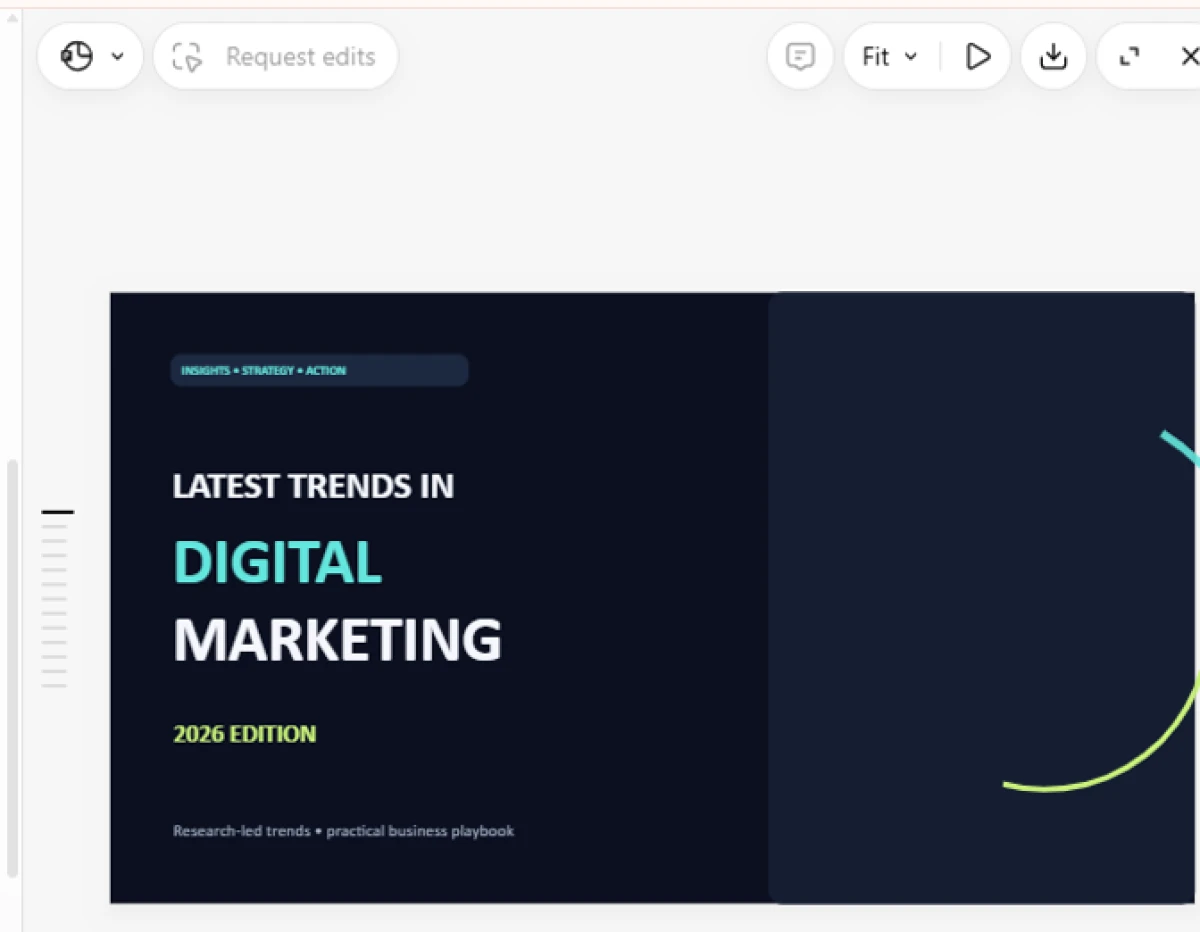
The generated deck open in the editor, ready to refine and export.
Step 4. Make it refine specific slides with real data
This is where I got the most value on the second pass. I went slide by slide and asked it to strengthen the weak ones, add figures, and cite where each number came from. Two slides were explaining a trend without any evidence of its scale, so I asked it to find stronger, sourced numbers and label them clearly. It went and researched, then added them with sources. The improvement was obvious.
One caution I cannot repeat enough: check every statistic it gives you. Even when it cites a source, confirm the number is real and current. Treat its figures as leads to verify, never as facts to paste.
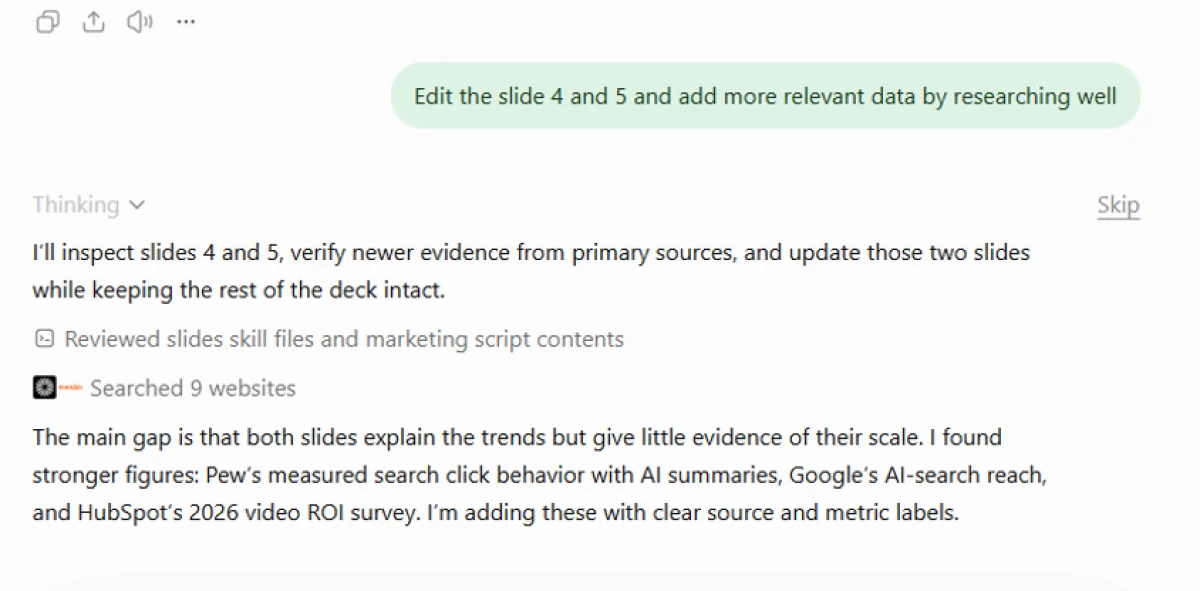
Asking it to rework slides 4 and 5 and back the claims with researched, sourced data.
Step 5. Export, then finish it somewhere else
The file it gave me was correct and completely usable as a starting point. It was also plain. So the last step was not inside the AI at all. I took the deck into PowerPoint and a design tool, applied a proper template, fixed the spacing, and replaced the stock-looking charts. That final layer is what turned it from an AI draft into something I was happy to present.
The main ways to make a PowerPoint with AI, and when each one is worth it:
| Method | Effort | Output | Best for |
|---|---|---|---|
| ChatGPT Agent Mode | Low | Finished .pptx | A fast, complete first draft |
| ChatGPT code tools | Low | Plain .pptx | Text-heavy, no-frills decks |
| Claude presentation builder | Low | Designed deck, exportable | A clean draft with less fixing |
| Outline, then PowerPoint import | Medium | Outline into your template | Keeping your own brand design |
| AI plus Canva or Gamma | Medium | Designed slides | The best-looking final result |
Where it falls apart: my honest findings
This is the part the headline promised, and the part most guides skip. After timing the whole build, the problem was not that the AI was slow. It was that the fast part was tiny and the slow part was everything after.
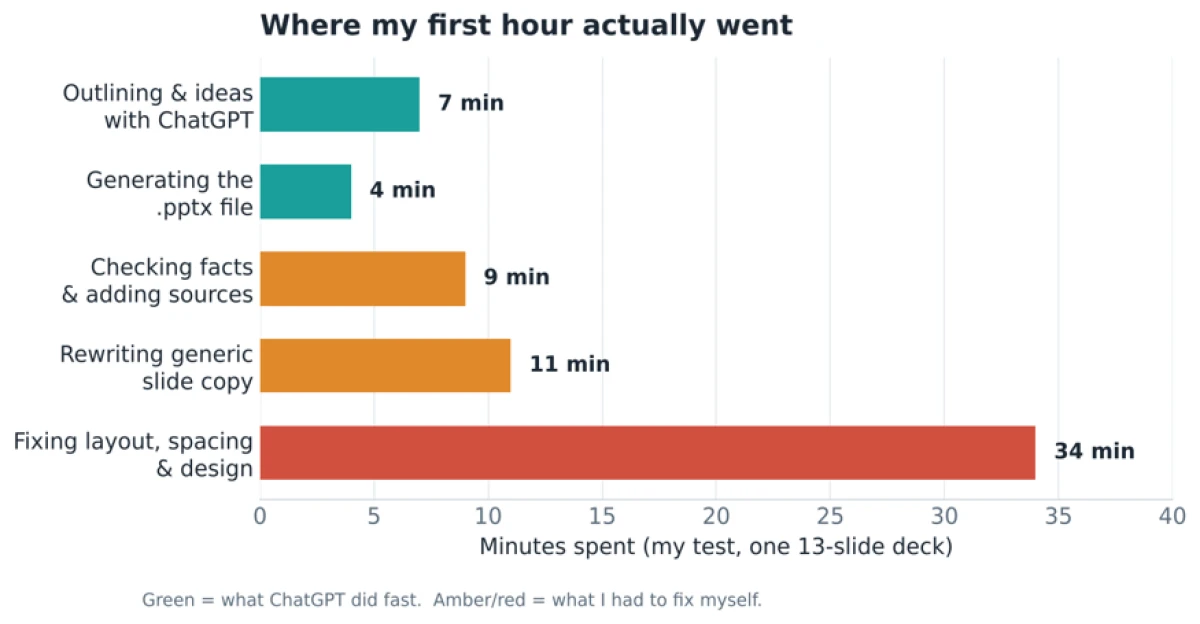
My own time log from building one 13-slide deck. The green work was minutes. The fixing was most of the hour.
Design is the real weak spot. AI is great at writing and still clumsy at design. The slides it generated were readable but generic: default spacing, flat layouts, charts that looked like placeholders. Visual storytelling, brand consistency, and the judgement of what to cut are still very human jobs.
The numbers need checking. Some statistics it produced were confidently wrong, even a couple it claimed to have sourced. On a deck meant to persuade, one bad figure costs you the room. Budget real time to verify every claim.
Charts are basic. It handles a simple bar or line, but anything more involved, like a waterfall or a proper comparison chart, is beyond it. I rebuilt most visuals myself.
Formatting can break on export. Decks that start life web-first often arrive in PowerPoint with the fonts, sizes, and spacing shifted. You fix it, but it is friction.
It stalls and repeats on long decks. Past a certain length it starts reusing phrasing and slowing down. Fine for a dozen slides, tiring for forty.
The workflow that actually worked for me
Once I stopped expecting one tool to do the whole job, everything got easier. I rated each method I tried on two things that actually matter: how fast it got me to a first draft, and how polished that draft looked before I touched it.
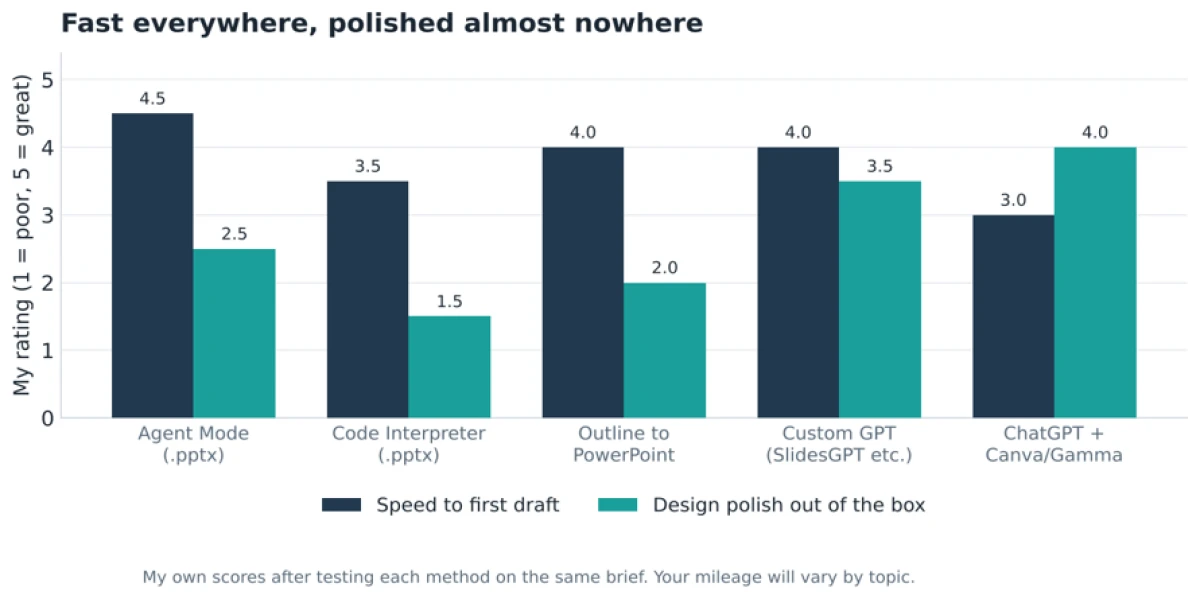
Every method got me to a draft quickly. Almost none produced a polished look on its own.
The pattern is clear. Speed is solved. Polish is not. So the workflow that worked was a stack, not a single tool:
1. Think and write with the AI. Brief, outline, slide copy, speaker notes.
2. Generate the first draft from the locked outline. Claude's builder, ChatGPT Agent Mode, or a custom GPT.
3. Design in a dedicated tool. A PowerPoint template, Canva, or Gamma for the real look.
4. Do a human pass last. Verify every number, cut a third of the words, and read it out loud.
The prompts I kept reusing
These four did most of the work. Copy them, swap in your own details, and you will skip the clumsy first attempts I wasted time on.
| Use it for | The prompt |
|---|---|
| The brief | You are my presentation strategist. Audience: [who]. Goal: [what they should do after]. Tone: [how it should feel]. Build a [N]-slide outline on [topic], grouped as a story, not a list. |
| Tighten the outline | Challenge this outline. Which slides are weak, which are missing, and what is the single strongest closing slide I could end on? |
| Build the file | Turn this outline into a finished presentation with editable text. One idea per slide, short speaker notes under each, and keep it exportable to PowerPoint. |
| Fix a weak slide | Slide [N] states a trend but shows no evidence of its scale. Research stronger figures, add them, and label each source clearly. |
So, is it worth it? My verdict
Yes, with your eyes open. If you walk in expecting the AI to hand you a finished, beautiful deck, you will be disappointed and you will waste an hour fixing it in frustration. If you walk in treating it as the fastest writing and thinking partner you have ever had, and you plan for a design pass afterwards, it is a genuine upgrade to how you work.
For me, the ideas really were the best part, exactly as I hoped. The slides were the part I still had to own. Knowing which is which before you start is the difference between a tool that saves you an afternoon and one that quietly eats one.
Frequently asked questions
Can ChatGPT create a PowerPoint file directly?
Yes. In 2026 ChatGPT can produce a real, downloadable .pptx with editable text, either through Agent Mode or by using its code tools. The older behaviour of only giving you a text outline is out of date.
Can Claude make a PowerPoint?
Yes. Claude builds a presentation inside its own editor, which you can refine and export. In my test it produced a cleaner first draft than a plain code-generated file, though I still finished the design elsewhere.
Does the free version work for this?
Free tiers are excellent for the writing and outlining. Generating and exporting a finished deck reliably, and using features like ChatGPT Agent Mode, usually needs a paid plan.
Does AI design the slides as well as write them?
Not well. It lays out text competently but the result looks generic. For a polished design you still want a PowerPoint template, Canva, or a tool like Gamma after the AI writes the content.
Is an AI-generated deck safe to present at work?
Only after a human pass. The structure and writing are reliable, but verify every statistic and claim before it goes in front of an audience. Confident wrong numbers are the main risk.

With experience writing 500+ pieces of content across different formats, I focus on making technology and cybersecurity topics clear, informative, and accessible. At **TechJox**, I cover tech news, cybersecurity trends, digital safety, and practical guides that help readers stay informed and make better decisions. My approach combines research, accuracy, and simple storytelling to turn complex information into useful, engaging, and easy-to-understand content.
Discussion (0)
You need a free TechJox account to join the discussion and report scams you spot.