
I spend more of my working day inside an inbox than I'd like to admit, so I finally sat down and put the most talked-about AI email tools through the exact same real-world task. No marketing claims, no cherry-picked demos. Just me, one prompt, and five tools, timed and screenshotted. Here's what actually happened, which ones I'd pay for, and which ones quietly wasted my time.
First, let's be honest about what “inbox triage” means
“Inbox triage” is the daily work of deciding what matters: surfacing the emails that need you now, summarizing the long threads, drafting the quick replies, and sweeping the noise out of the way. It is reading and sorting, not just writing.
That distinction matters because half the tools people recommend for “email AI” don't triage anything. They only help you compose a message. Two of the five tools I tested fall squarely into that camp. I'm keeping them in the roundup because they're genuinely useful, and because people constantly confuse the two categories, but I'll score writing and triage separately so you can see the gap at a glance.
How I tested (same prompt, every tool)
To keep things fair, I gave every tool the identical brief: a short outreach email, the kind I actually send to agencies. Here is the exact prompt I pasted into each one:
“Write a short, professional, and friendly email expressing interest in collaborating with your digital marketing agency. Highlight potential opportunities for a mutually beneficial partnership and keep the message concise, natural, and engaging.”
Using one fixed prompt across every tool means the only variable is the tool itself, so differences in the output are down to the software, not the instructions.
My evaluation criteria
I didn't want to grade on gut feeling, so I held every tool to the same four-part rubric and scored two of those dimensions out of 10. Here is exactly what I was measuring:
1. Access and friction
How quickly I could get from an open tab to usable output, counting every sign-up, login, and permission request along the way. The more hoops a tool threw up before it did anything useful, the lower it scored here. This is where Shortwave, for example, ran into trouble.
2. Writing quality (scored out of 10)
Whether the draft sounded human and on-brief, and how much editing it needed before I'd be comfortable hitting send. A high score means the output could go out almost untouched; a low score means heavy rewriting.
3. Triage power (scored out of 10)
The real test for this topic: can the tool read, prioritize, summarize, or organize an inbox, or does it only compose outbound drafts? A pure writer earns a low triage score by design, so you can compare a composer and a true inbox manager on the same scale.
4. Value and access model
What you get for free versus what sits behind a paywall, plus any lock-in or ecosystem requirement (for instance, needing a Google or Microsoft subscription, or being tied to a single standalone app).
How to read the scores
9 to 10: excellent, does this better than almost anyone.
7 to 8: strong, with only minor gaps.
5 to 6: useful, but clearly limited.
3 to 4: weak for this particular job.
1 to 2: barely applicable.
Each tool also gets a one-word verdict that sums up where I land: Love, Like, Mixed, or Pass.
The quick-reference verdict
If you only read one thing, read this table. Details, screenshots, and the full reasoning follow below.
| Tool | Type | Triage? | Free option | From (per mo) | My scorecard |
|---|---|---|---|---|---|
| QuillBot AI Email Writer | Web writer | No | Yes (full) | $0 | Write 8 / Triage 1 |
| Mailmeteor | Gmail merge + writer | Add-on only | Yes (writer) | $0 writer | Write 7.5 / Triage 1* |
| Shortwave | AI email client | Yes (native) | Trial only | about $30 | Not tested (blocked) |
| ChatGPT (Gmail connector) | AI chatbot | Partial | No (connector) | Paid plan | Write 9 / Triage 6 |
| Gemini in Gmail | Built-in AI | Yes (AI Inbox) | Partly (US) | Google AI plan | Write 8 / Triage 7 |
* Mailmeteor's free tool only writes. Its separate paid “AI Email Assistant for Gmail” does sort and pre-draft; more on that below.
1. QuillBot AI Email Writer
QuillBot was the gentlest start of the whole test. Its Free AI Email Writer is exactly that: free, no sign-up, no credit card. I dropped my prompt into the box, hit generate, and had a draft in a couple of seconds.
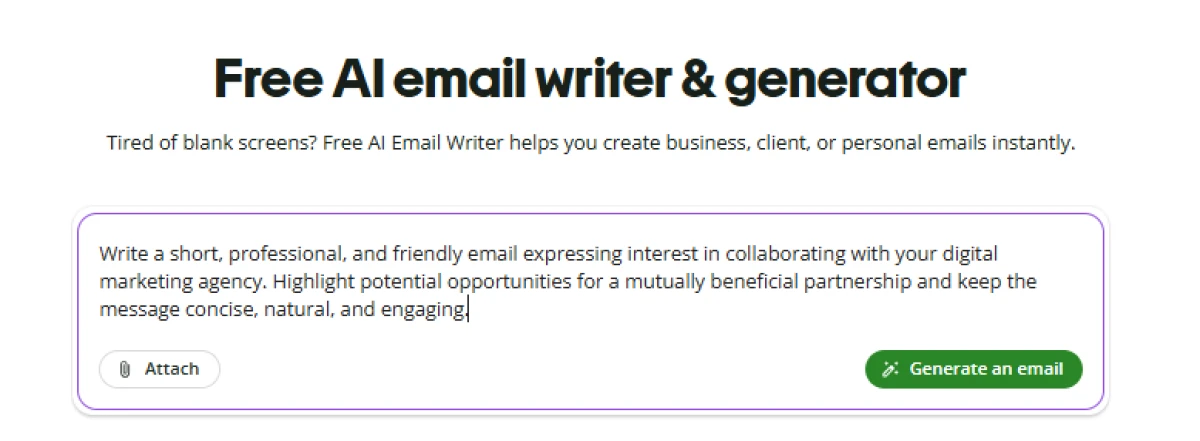
QuillBot's free AI Email Writer: I pasted the same brief I used everywhere else.
The output was clean and genuinely usable. It opened with a clear subject line (“Exploring a Partnership”), a warm-but-professional tone, and a short, natural body that hit the brief almost perfectly. No fluff, and no robotic “I hope this email finds you well” padding running three sentences long.

The draft QuillBot returned: concise, on-brief, and ready to send with minimal edits.
What I rated highly
- Zero friction: no account, no permissions, and it works instantly in the browser.
- Genuinely concise output; it respected the “short and natural” instruction better than some paid tools.
- Tone, length, and language are all steerable from the prompt, and there's a Chrome extension if you want it in your other apps.
The downside
- It does not touch your inbox. It cannot read, summarize, prioritize, or reply to incoming mail. It only drafts.
- You're copy-pasting into Gmail or Outlook yourself; there's no native send.
Scorecard Writing 8/10 • Triage 1/10 • Verdict: Love (as a writer)
Bottom line: I love QuillBot for what it is, the fastest way to get a solid first draft for nothing. Just don't mistake it for an inbox-triage tool. It writes; it doesn't sort.
2. Mailmeteor
Mailmeteor is best known as a Gmail mail-merge and cold-email tool, but it also offers a free, standalone AI Email Writer, and that's what I tested. Like QuillBot, it needs no sign-up. The interface is a clean two-pane layout: your brief on the left, the generated email on the right.

Mailmeteor's two-pane AI Email Writer: prompt on the left, generated draft on the right.
The draft was friendly and well-structured, though it leaned a little more “template-y” than QuillBot: it handed me a full set of placeholder fields (“[Your Name]”, “[Your Position]”, “[Your Company]”, and so on). That's handy if you're sending many personalized emails, which is exactly Mailmeteor's wheelhouse, but it means a touch more editing before a one-off send.
Where it delivers
- Free standalone writer with tone, length, and language controls and no quota.
- Built by a mail-merge company, so the output is tuned for outreach and follow-ups.
- There's a real triage product in the family: Mailmeteor's “AI Email Assistant for Gmail” sorts and prioritizes incoming mail and pre-drafts replies.
What it misses
- The free writer I tested is outbound only, with no reading or sorting of your inbox.
- The actual triage features live in the separate Gmail add-on, which is a paid product (7-day trial).
- More placeholder scaffolding than I needed for a single email.
Scorecard Writing 7.5/10 • Triage 1/10 • Verdict: Like
My take: a dependable free writer, and it's worth knowing that Mailmeteor also sells genuine inbox triage through its Gmail assistant. But the free tool I tested is a composer, not a triage engine.
3. Shortwave
Shortwave is the only one of the five that is a purpose-built AI email client. On paper it's the most exciting: it's built on Anthropic's Claude models and does exactly the triage work this article is about. It offers AI inbox organization that archives low-priority mail, groups action items into to-dos, stars what matters, puts instant AI summaries at the top of every email, and runs AI search that finds mail by description. That's real triage.
And yet this is where my test hit a wall. Shortwave is an email client, so it wants full control of your mailbox before it does anything. The sign-in screen offers only “Continue with Google” (Outlook is waitlist-only).
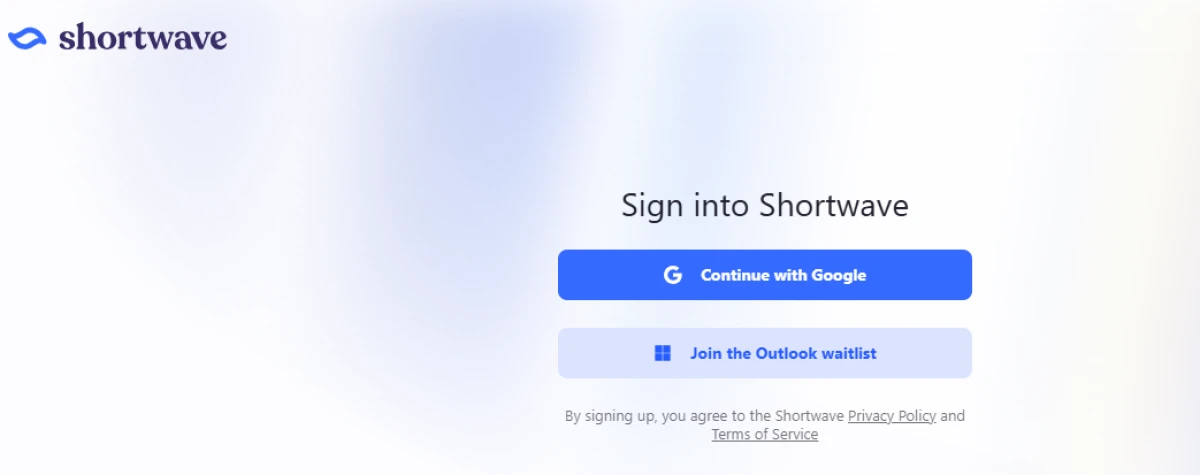
Shortwave's sign-in: Google only, with Outlook still on a waitlist.
When I went through the Google flow, it demanded the full set of Gmail permissions, and the moment I hesitated on granting all of them, I got bounced straight to a hard stop: “Oops, we need those.” No partial access, no read-only preview, no “let me try it first.”
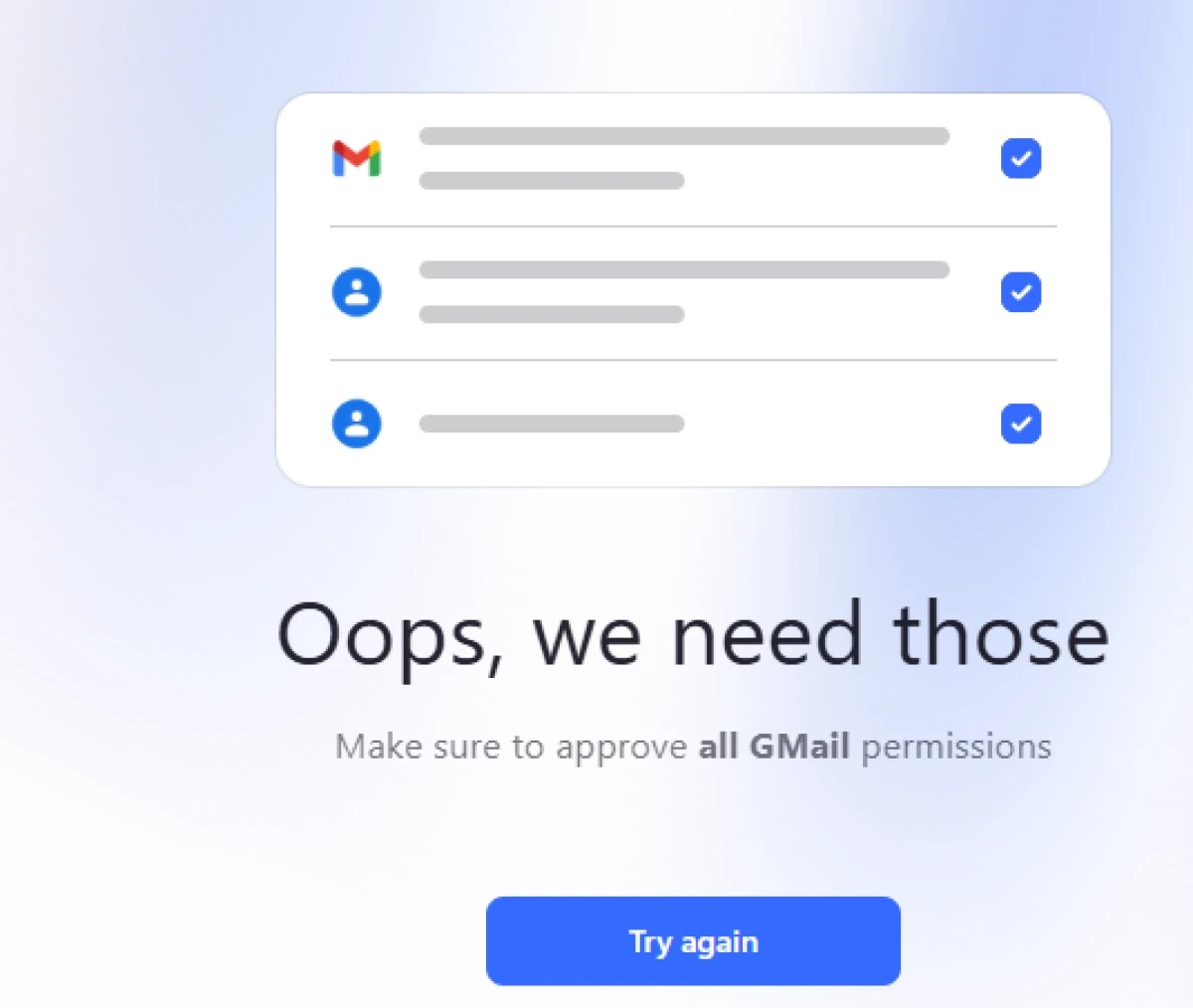
The permission wall that ended my Shortwave test: it's all-or-nothing on Gmail access.
Strengths on paper
- Native inbox triage: auto-archive, to-do grouping, auto-starring, and instant AI summaries.
- Claude-powered AI assistant and natural-language AI search across years of mail.
- Clearly the most “designed-for-triage” product in this group.
Where it tripped me up
- All-or-nothing Gmail permissions. Decline any, and you're stopped cold, which is a real friction point if you're cautious about inbox access.
- No casual free tier to kick the tyres. Paid plans start around $30 per seat per month, with a 14-day trial.
- Outlook users are stuck on a waitlist.
Scorecard Writing: not tested • Triage: not tested • Verdict: Mixed (access blocked)
Where I land: this is potentially the best triage tool in the test, and the only one I couldn't actually evaluate, because the front door was locked. If you're a Gmail power user who's comfortable granting full access and paying from day one, Shortwave is probably the most capable option here. For a quick, low-commitment trial, it's the most frustrating.
4. ChatGPT
ChatGPT needs no introduction as a writer, and sure enough it produced the most naturally-worded draft of the five. Given my prompt it returned a clean “Exploring Collaboration Opportunities” email that was warm, concise, and essentially send-ready.

ChatGPT's draft: the most natural phrasing of the five tools I tested.
But the interesting part for triage is ChatGPT's Gmail connector. Once linked (it uses Google's own sign-in), ChatGPT can search your mail, read and summarize threads, and draft replies. Since mid-2026 it can even send a reply you approve, one message at a time, from the web app. So it answers genuine triage-style questions, such as “which emails from this week still need a reply?”, and does them well.
The catch is that it organizes nothing. OpenAI's connector is explicit that it does not delete, label, archive, or file anything. It's a brilliant reading-and-drafting layer on top of your inbox, but it won't clean the inbox itself. And the connector requires a paid plan; the free tier doesn't include it.
The standout bits
- The strongest writing in the test: natural tone, on-brief, and minimal editing.
- The Gmail connector reads, searches, and summarizes your inbox and drafts replies.
- Since June 2026 it can send an approved reply (one at a time) from the web.
The caveats
- No organizing actions: it can't archive, label, or file, so it can't actually tidy your inbox.
- The Gmail connector needs a paid plan (and admin approval on Business or Enterprise).
- It acts as you on a personal mailbox, which isn't ideal for shared addresses like support@.
Scorecard Writing 9/10 • Triage 6/10 • Verdict: Love (with caveats)
In short: my favourite for writing and for asking smart questions about my inbox. Just know that its triage is “read, summarize, and draft,” not “sort and file.” For many people that's 80% of the job, but it's not a true inbox organizer.
5. Gemini in Gmail
Gemini had a home-field advantage: it lives inside Gmail. When I asked it to help, it first wanted permission to connect to the Gmail app, a one-tap consent rather than a full OAuth gauntlet.
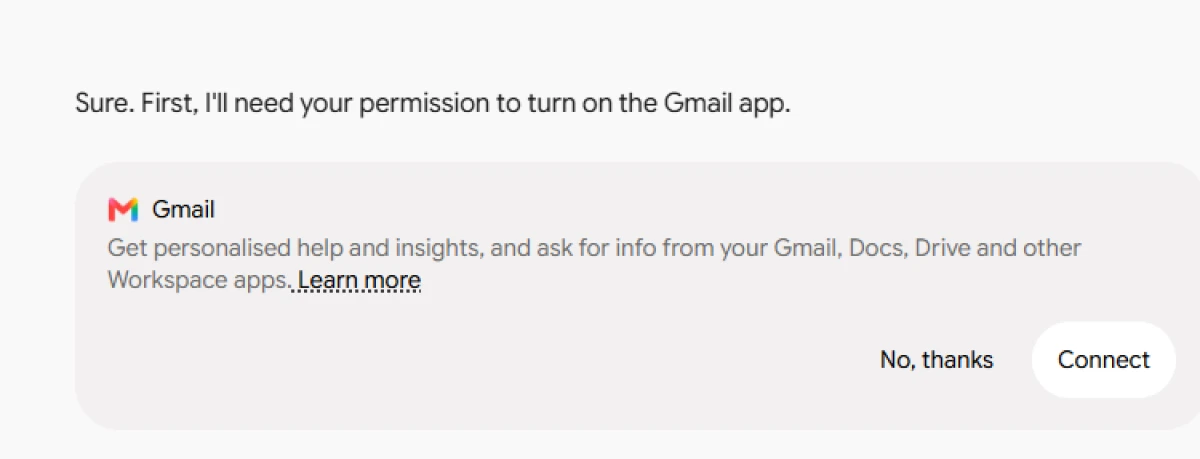
Gemini asking to connect to Gmail before it helps: a single, in-product consent.
Once connected, “Help me write” drafted my outreach email straight into a Gmail compose window, with no copy-paste and no context switch. The draft itself was solid: friendly, clear, and already sitting in the To, Subject, and Body I was going to send from.

The Gemini draft landing directly in a Gmail compose window: the smoothest hand-off of the test.
Writing aside, this is where 2026 gets interesting for triage. Since Gmail's “Gemini era” update rolled out in January 2026, Gmail gained a genuine AI Inbox that surfaces your top priorities and the topics to catch up on, plus AI Overview summaries for long threads, suggested context-aware replies, Proofread, and “Help me schedule.” That's the closest thing to real, native inbox triage among the mainstream tools, and it's right where your mail already is.
The honest caveat is the paywall and the rollout. “Help me write” reaches free personal accounts (US only, to start), but the AI Inbox triage layer requires a Google AI plan (Plus, Pro, or Ultra) or an eligible Workspace plan, and it launched in English and the US first.
What worked well
- It's inside Gmail, so drafts land in compose with zero copy-paste.
- Real native triage: AI Inbox priorities, thread summaries, suggested replies, proofread, scheduling.
- Low-friction, one-tap consent instead of a heavy permissions wall.
The sticking points
- The full AI Inbox triage sits behind a paid Google AI or Workspace plan.
- Early rollout was US and English first, so availability varies by country and account type.
- You're locked into the Google ecosystem to get the benefit.
Scorecard Writing 8/10 • Triage 7/10 • Verdict: Love (if you live in Gmail)
The gist: for anyone whose life is already in Gmail, this is the most seamless triage experience in the test. The drafting is smooth and the native AI Inbox is the real deal. Just be ready to pay for a Google AI or Workspace plan to unlock the triage half.
Other AI email assistants worth knowing about
The five I tested are the tools most people reach for first, but they're not the whole market. For pure triage, some of the best options are ones I didn't put through the prompt test, because several don't write at all; they organize. Here's the shortlist I'd actually consider:
| Tool | Best at | Free tier | From (per mo) |
|---|---|---|---|
| SaneBox | Pure triage and filtering on top of any email account (IMAP) | No (trial) | about $6 |
| Superhuman | Speed plus AI (Split Inbox, auto-labels, auto-drafts) | No | $30 |
| Fyxer AI | Auto-sorting plus reply drafts in your tone (Gmail and Outlook) | No (7-day) | $30 |
| Copilot in Outlook | Prioritize my inbox, summaries, drafting for 365 | Limited* | about $30 add-on |
| Spark (Readdle) | Smart Inbox buckets plus AI, budget-friendly | Yes | about $5 |
| Canary Mail | Cross-platform AI client with Sidekick assistant | Limited | about $3 |
* Microsoft bundles a limited set of Copilot features into consumer Microsoft 365 plans; the full business Copilot is an add-on. Prices are indicative starting points and vary by region and billing term.
The one-line take on each
- SaneBox is the triage purist. It sits on top of any email account (Gmail, Outlook, IMAP) and quietly filters low-priority mail into a separate folder, with reminders and one-click unsubscribes. There's no AI writing at all, just ruthless sorting, from about $6 a month. If you only want a cleaner inbox without changing your email app, start here.
- Superhuman is the premium speed machine, now part of the Grammarly-owned “Superhuman” suite. You get Split Inbox, AI auto-labels, and auto-drafts that write replies before you open the message. There's no free plan, and Mail starts at $30 a month. Worth it if you live in email and bill by the hour.
- Fyxer AI is an AI assistant that auto-sorts incoming mail (To Respond, FYI, Marketing) and drafts replies in your own tone across Gmail and Outlook, plus meeting notes. It's from $30 a month, with no free plan and a 7-day trial. It won't send mail for you, so you stay in control.
- Microsoft Copilot in Outlook is the natural pick for Microsoft 365 shops. “Prioritize my inbox” flags high-importance mail with reasons, alongside summaries and drafting. The full version is the roughly $30 per user per month Copilot add-on.
- Spark (Readdle) is the budget-friendly option. Its Smart Inbox buckets mail into people, newsletters, and notifications, and it adds AI compose and summarize. There's a genuine free tier, which is rare in this space.
- Canary Mail is a cross-platform AI email client (Mac, iOS, Windows, Android) with a “Sidekick” assistant for summaries and replies, if you want an app rather than an add-on.
A cautionary note on lock-in: In September 2026, Notion shut down Notion Mail, its AI-powered inbox, after most users skipped it and the company pivoted to AI agents. The lesson is that AI email clients can and do fold. Tools that work on top of your existing Gmail or Outlook (SaneBox, Fyxer, and the native Gemini and Copilot features) are a safer bet than a brand-new standalone client, because you're never trapped if the product disappears.
Writer vs. triage: don't buy the wrong thing
The single biggest mistake I see is paying for an “AI email tool” expecting it to tame an overflowing inbox, when it only helps you write. So here's the clean split from my testing:
These mostly WRITE (compose drafts):
QuillBot and Mailmeteor's free writer: great, free, and outbound-only.
ChatGPT: the best writer; its connector also reads and summarizes, but doesn't organize.
These actually TRIAGE (read, prioritize, sort):
Gemini in Gmail (AI Inbox), Shortwave, Superhuman, Fyxer, SaneBox, and Copilot in Outlook.
Of those, only Gemini and Copilot are built into the inbox you already use; the rest are separate clients or layers.
My recommendations, by what you actually need
Writing better emails without paying: QuillBot delivers quick, polished drafts, while Mailmeteor's free writer works well for professional outreach.
Need help managing emails inside Gmail or Outlook? Gemini and Microsoft Copilot can summarize conversations, highlight important messages, and assist with replies.
A dedicated AI email client is worth considering: Shortwave brings AI-powered inbox management to Gmail, while Superhuman focuses on speed and efficiency.
SaneBox is a practical choice for inbox cleanup: It automatically filters less important emails without requiring users to switch their existing email app.
Automatic sorting and ready-to-edit replies are Fyxer's strengths: It works with Gmail and Outlook to organize incoming messages and prepare draft responses.
Budget-conscious users have a couple of options: Spark provides a free email management tier, while SaneBox offers relatively affordable paid filtering.
If someone forced me to pick one overall winner for most people in 2026, it's Gemini in Gmail for Google users and Copilot in Outlook for Microsoft users, because the best triage tool is the one that's already sitting in the inbox you open every morning. For heavy senders who want the sharpest writing, I'd keep ChatGPT open alongside it.

Ethan Mitchell is a technology writer at TechJox, specializing in artificial intelligence, cybersecurity, SaaS platforms, software applications, and digital automation. His writing covers AI tools, data privacy, emerging technologies, and software reviews, with a focus on practical insights, clear explanations, and helping readers make informed technology decisions.
Discussion (0)
You need a free TechJox account to join the discussion and report scams you spot.